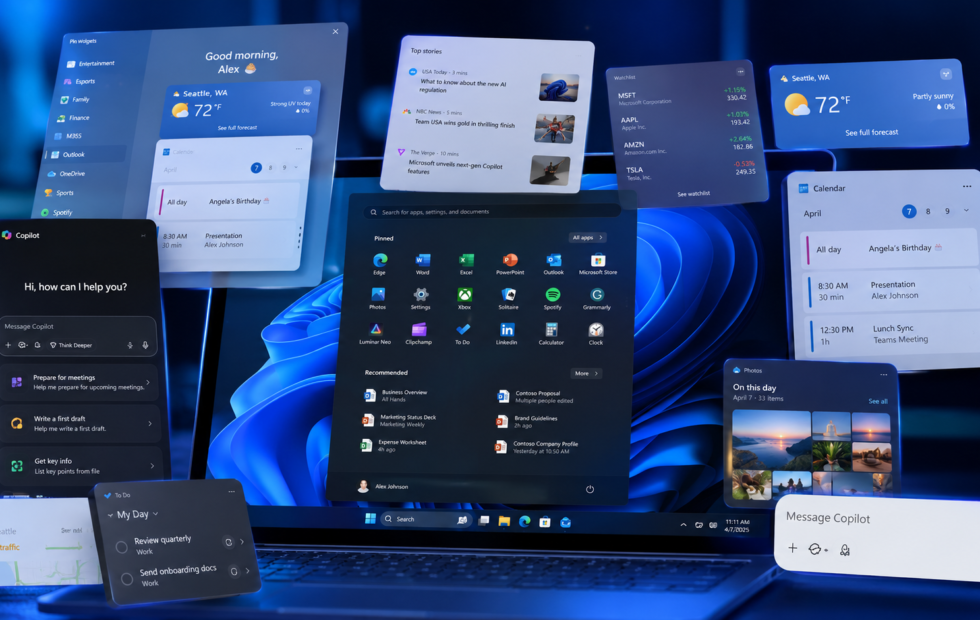
I’ve used this Windows 11 PC every day for long enough that most of its habits no longer surprise me. But over time, the little interruptions began to pile up. I would open Start for File Explorer and find recommendations and suggested apps competing for attention. Widgets flooded with news and weather in the taskbar, setup reminders returned after every update, and more parts of the system seemed to point back toward Copilot.
In all honesty, none of this made the computer unusable; what did was that Windows just kept asking for attention when I was trying to get on with important work.
For a while, I assumed that the Copilot was the root cause for most of it. It was the newest and most visible target, the new kid in the block; it seemed obvious. So what action did I take? I threw the app in the trash and expected Windows to feel substantially cleaner. To my surprise, it did not. Start Menu still looked almost the same, the widgets were there, and the programs slowing down at sign-in had nothing to do with AI.
That failed first attempt changed how I approached the cleanup. Instead of hunting for one dramatic fix, I started dealing with the settings and background apps that were actually getting in my way.
I removed Copilot, but Windows still felt busy
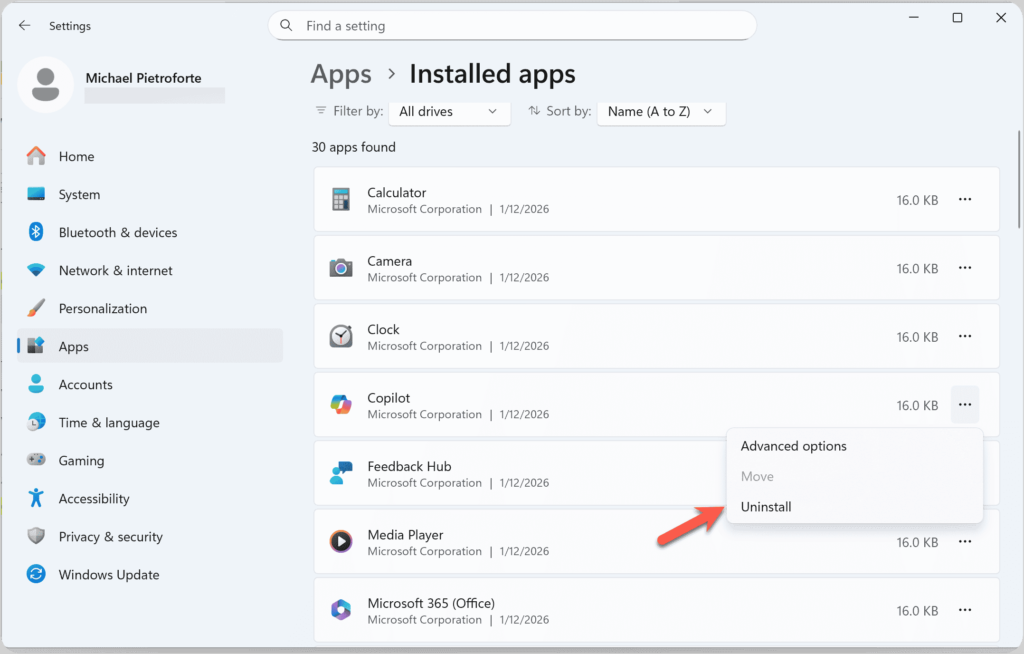
Copilot was the obvious place to begin because removing it was straightforward. It appeared under Settings > Apps > Installed apps with an ordinary Uninstall option, and Microsoft supports removing the Windows app that way. I stopped there. Searching system folders for every file containing the word “AI” sounded thorough, but it also sounded like the beginning of a Windows support held together by many forum posts.
The Windows app is not a master switch for every product carrying the Copilot name. Word, Excel, PowerPoint, and OneNote can have their own Enable Copilot checkbox under File > Options > Copilot. Microsoft documents those Office controls separately, so uninstalling the Windows app does not reach into Microsoft 365.
Recall needed its own check as well. It belongs to compatible Copilot+ PCs rather than every Windows 11 machine, and snapshot saving is opt-in. Its controls sit under Settings > Privacy & security > Recall & snapshots. The feature can be removed, although doing that deletes saved snapshots and requires a restart, as Microsoft’s Recall privacy guide explains. On a PC that does not support Recall, nothing is waiting in the background to be disabled.
This cleared up what “remove the AI” actually meant, but it did not make the desktop calmer. The weather panel still opened, Start still offered things I never wanted, and Windows continued suggesting that I finish setting up a computer I had already been using.
The most useful cleanup was in Windows settings
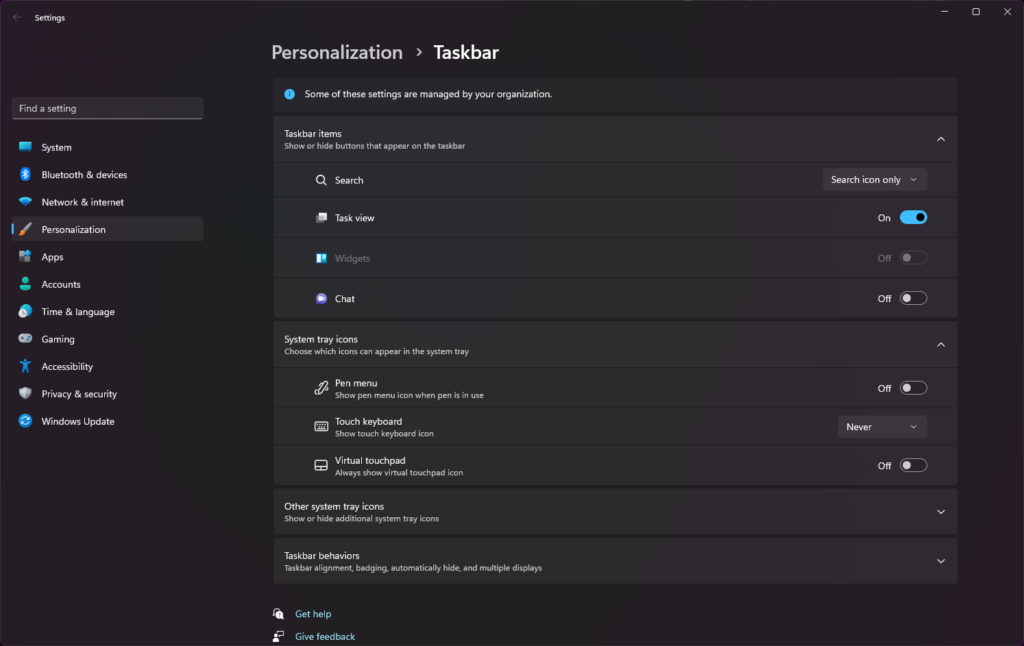
The weather panel was the clue. It had nothing to do with Copilot, so I opened the taskbar settings and turned off Widgets. I hid the large Search box and disabled search highlights, but kept Search itself; Windows key + S still opens it when I need it. Then I unpinned the Start apps I had never asked for. The taskbar looked quieter immediately. Windows had not become faster, and I did not need to pretend it had. It simply interrupted me less often.
Notifications were mixed into the same irritation even though their controls live elsewhere, under Settings > System > Notifications. I kept alerts from programs that might genuinely have something to say. The Windows welcome screen after updates, setup reminders, tips, and suggestions were turned off. An operating system I had used for years did not need to keep introducing itself.
I also opened Privacy & security > General and switched off the advertising ID, app-launch tracking, and suggested content in Settings. The advertising control is easy to overread: turning off the identifier does not reduce the number of ads; it stops apps using that particular ID to personalize them.
The setting I nearly missed was Personalization > Device usage. Windows asks whether the PC is for gaming, school, development, entertainment, and several other broad purposes, then uses those choices for tailored tips, offers, and app recommendations. Every box was cleared. I already knew why I owned the computer.
I did not let debloating become the project
I have seen many Reddit threads and forum posts about debloating scripts, an appealing version of Windows cleanup that ends with a small app list. It usually begins with a large administrator-level script pasted into PowerShell. I understood why that looked easier, but I did not understand every service, policy, and package those scripts changed, and this is a PC I use every day. If a Store page or sign-in failed three months down the line, “something in the debloat script” wouldn’t be a good diagnosis.
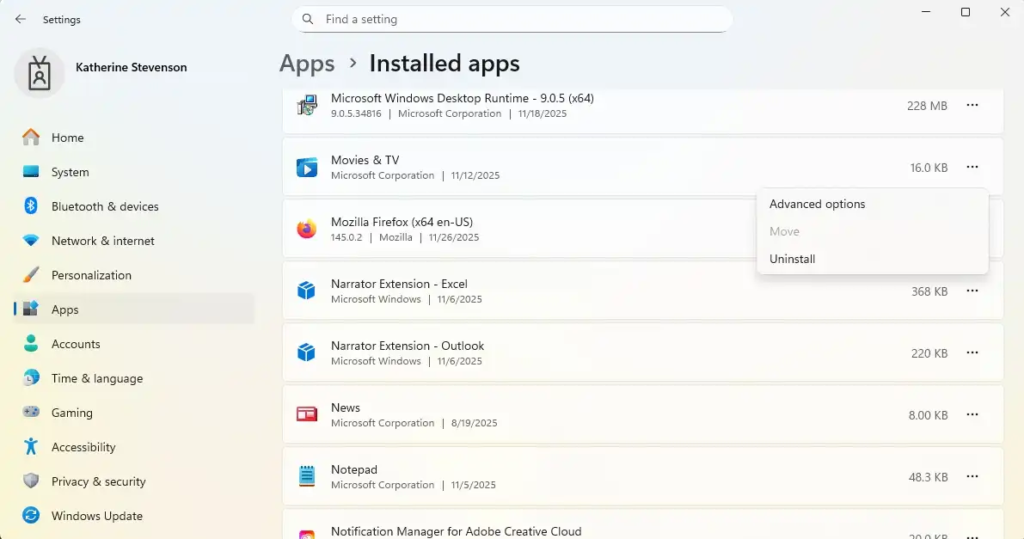
So the most usable stuff stayed: Windows Security and Update, the Store, App Installer, WebView, hardware drivers, Visual C++ runtimes, and control panels I could identify. I removed OEM trials, promotional bundles, unused games, chat apps, and media tools through Settings > Apps > Installed apps instead. Some Windows components do not offer the normal Uninstall control and I did not treat that as an invitation to force them out.
The resulting app list was still longer than the screenshots in aggressive debloat guides. It was also a list I mostly couldn’t explain.
Startup and Search made the biggest difference
Startup mattered more than another afternoon spent deleting packages. Under Settings > Apps > Startup, I disabled launchers, messaging tools, update helpers, and cloud utilities that did not need to appear the moment I boot up my pc. Important security software and hardware controls stayed enabled. For names I did not recognize, Task Manager’s startup-impact column was more useful than guessing, and Microsoft’s startup guidance confirmed that these choices could be reversed.
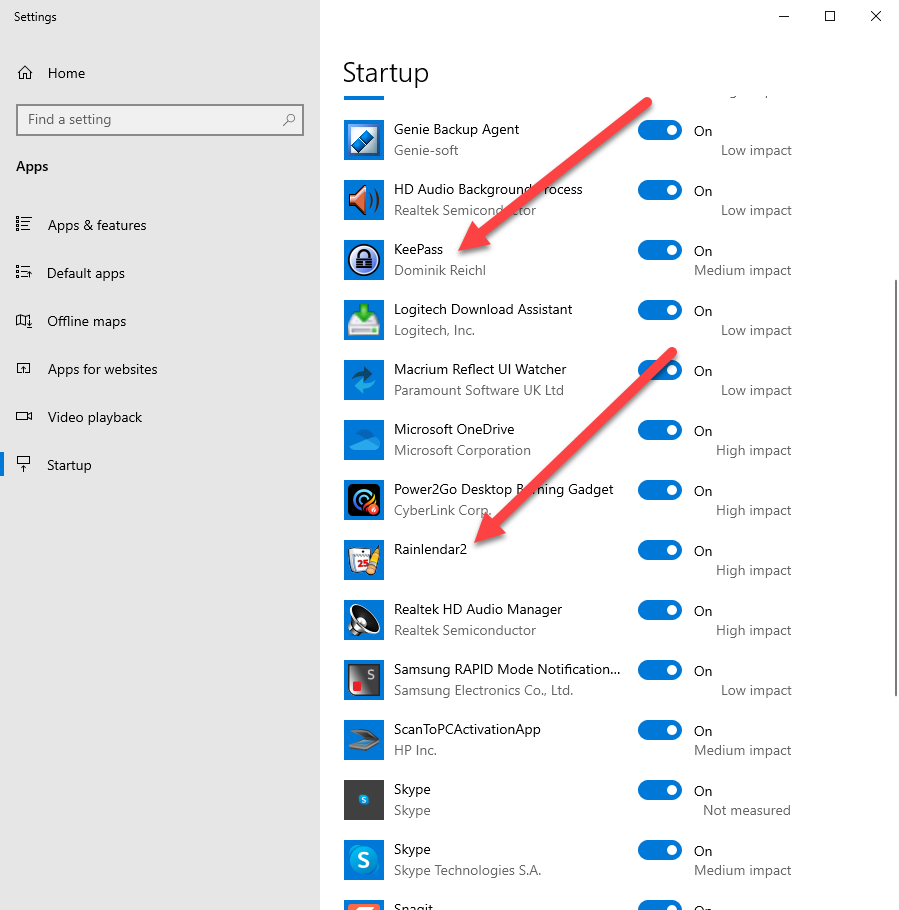
Background activity was less consistent. Some Store-style apps expose Background app permissions inside Advanced options, where I selected Never if the app had no reason to wake behind another window. Traditional desktop programs often keep the equivalent switch in their own settings. Microsoft explains that split, although it still means checking two different places.
I did not disable Windows Search. Indexing uses processor time and touches the disk while it catalogues files, but it also makes local search work, and I use local search. Instead, I excluded virtual-machine directories and old archives under Settings > Privacy & security > Searching Windows. Those locations contain enormous piles of files I rarely search individually. The useful folders remained indexed without Windows cataloguing everything I had downloaded. Microsoft notes that indexing the entire PC can increase processor use and battery drain, which was enough reason to narrow it rather than remove it.
Only then did Task Manager tell me something useful. I installed pending Windows and driver updates, restarted, opened the programs I normally use, and sorted the process list by CPU, memory, and disk. Activity jumped after the updates and settled later. A launcher that returned at every sign-in was easier to connect to an actual startup entry. This was not a benchmark; it stopped me treating every temporary Windows process as evidence that the operating system was bloated.
I also tried turning off Animation and Transparency under Settings > Accessibility > Visual effects, then selected Adjust for best performance in the older Performance Options panel. The result looked grim, so font smoothing and thumbnail previews went back on. Microsoft includes visual effects in its performance advice, but removing every visual nicety was not an improvement I wanted to keep.
Windows finally got out of the way
The PC did not become new, and Windows 11 did not become a different operating system. Sign-in improved because fewer programs arrived with it, while Start and the taskbar felt calmer because Widgets, recommendations, and setup reminders were no longer competing for attention. I had bundled those two annoyances together and called the whole thing slowness.
What helped was not a giant debloat script or the removal of one fashionable target. It was a collection of reversible choices, made after checking what each feature actually did. I now open Start and notice my programs before I notice Microsoft. That modest change was enough to stop me planning the move.