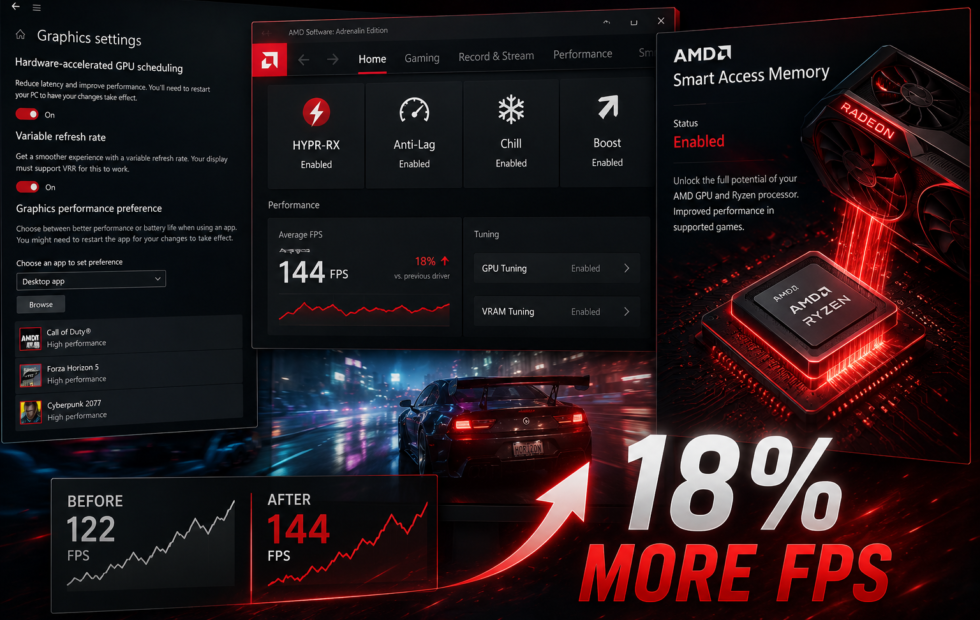
What does every PC gamer want? More performance and more FPS. Most of the time, gaining 10-20% performance is as easy as changing a few settings, while sometimes it requires running scripts or commands through PowerShell. I did the same thing when I noticed the slowdown in a game I played more often.
A crowded part in the game that normally felt smooth had started to stutter; visible lag and screen tears were evident. I did what any sane person would do: I restarted my PC, cleared cache, shut down some unnecessary background apps, but that did not make any difference.
It was then that I started fidgeting around the Windows settings and AMD’s Adrenaline software. I opened the graphics menu expecting an update to have changed something, but the resolution, frame cap, upscaling, and quality preset were where I had left them. Dropping shadows one level brought some frames back. It also made the game look worse and told me nothing about why performance had slipped.
My PC uses an AMD CPU and a dedicated Radeon GPU, so before accepting the lower quality I checked the layers around the game. I left its original preset in place from then on. After sorting out Windows, AMD Software, and one setting in the BIOS, the same test came back with 18% more FPS.
Windows Was Not Using the GPU Setting I Expected
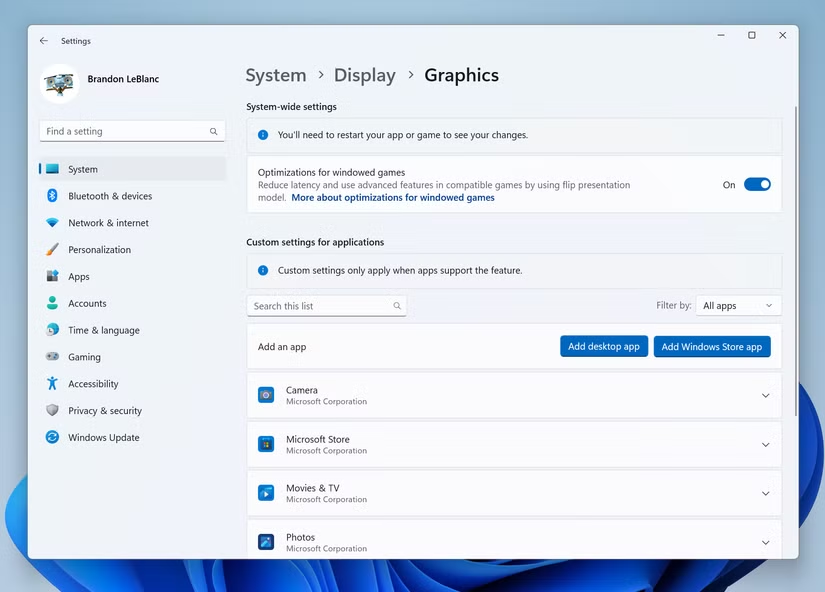
I started in Settings > System > Display > Graphics, a menu I and I feel like most people normally pass on the way to the regular display settings. Windows had the game set to Let Windows decide. That may be fine on a desktop with one graphics processor, but I had a dedicated Radeon card sitting in the PC and no reason to leave the choice vague.
The launcher confused this more than it helped. Windows applies a graphics preference to the app listed in this menu, and the launcher is not always the program that renders the game. I clicked Browse, found the game’s own .exe file, opened Options, and chose High performance. The Radeon GPU appeared beside the choice, which was the confirmation I wanted. I saved it and closed the game completely before opening it again.
That is a small detail, but it was the first one that felt connected to the problem I was seeing. I had checked the launcher earlier and assumed the job was done. It was not.
Windows keeps another useful control on the same Graphics page. I enabled Optimizations for windowed games because I play in borderless-windowed mode.
Microsoft says the feature applies to compatible DirectX 10 and DirectX 11 games, moving them away from an older display method to reduce frame latency and allow features such as variable refresh rate. It needs a game restart, so changing it while the game sat open in the background would not prove much.
The next run was better, although not by enough to explain the full drop. I was glad to see the number move at all. More importantly, I could put the graphics preset back where it had been and stop cutting image quality just to hide a Windows setting.
I Stopped Treating Every Adrenalin Option as an FPS Boost
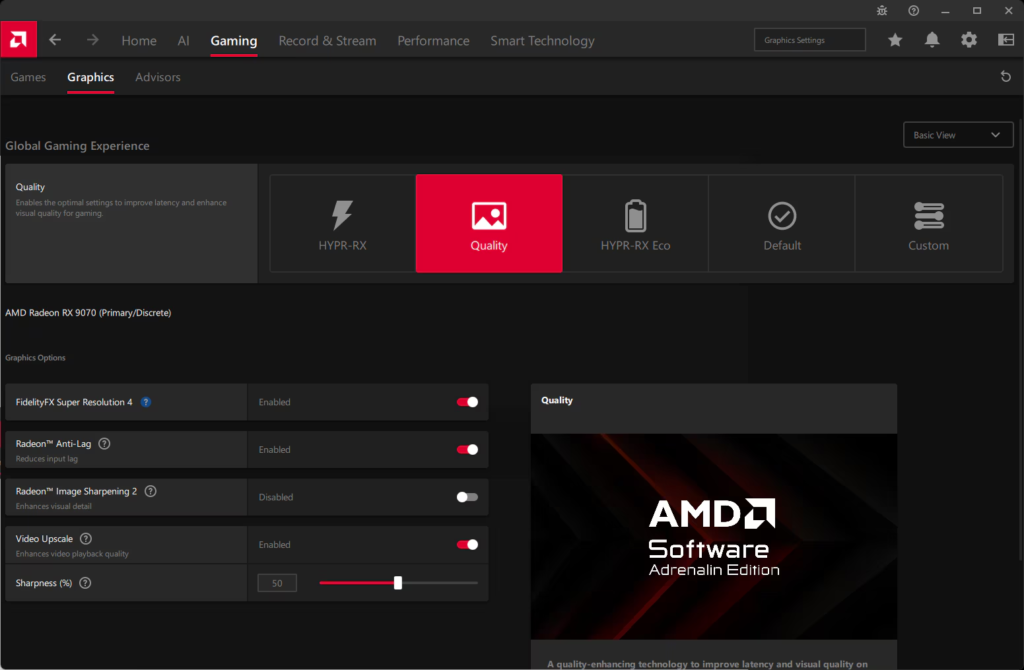
AMD Software: Adrenalin Edition was where I expected to find one obvious performance switch. HYPR-RX looked like exactly that. It appears as a one-click profile on the Home screen and can turn on several AMD gaming features together. Before leaving it enabled, I wanted to know what the click had actually changed, so I opened Gaming > Games and worked with the game’s own profile.
AMD calls HYPR-RX an instant performance option and advertises gains of up to 2.3 times in its tests, but that number needs context. On supported RDNA 3 hardware, including Radeon RX 7000 cards and newer, the profile can combine AMD Fluid Motion Frames 2.1, Radeon Super Resolution or in-game FSR, Radeon Boost, and Anti-Lag. AFMF inserts generated frames, while RSR, FSR, and Boost can reduce the amount of detail rendered before rebuilding or scaling the image.
The FPS counter can jump as soon as HYPR-RX is active, although that is not the same as the GPU rendering every frame at the original settings. I tried the profile, then returned to a custom setup so generated frames were not mixed into my 18% result.
HYPR-RX itself is not available on every Radeon system. AMD lists Radeon RX 7000 cards or newer, or Ryzen 7040-series APUs with RDNA 3 graphics or newer, plus Adrenalin 24.1.1 or later. AFMF has wider hardware support, but that does not make the one-click HYPR-RX profile universal.
Back in the game profile, I checked Radeon Chill and kept it off. Chill saves power by lowering the frame rate when movement settles, which worked against the stable comparison I wanted. I enabled Radeon Anti-Lag, but did not count it as an FPS gain. Anti-Lag changes frame timing to shorten the delay between an input and its response; the game can feel quicker while the counter stays put.
Radeon Boost was the setting I kept for performance. In supported games, it can lower the render resolution during fast movement and restore it as movement slows. I started with a modest Minimum Resolution Change value. Moving it higher may produce more frames, but it can also soften the picture, and I had already rejected lowering the entire graphics preset. Turning this slider all the way up would have reached the same bad answer by another route.
AMD’s guide to Chill, Anti-Lag, and Boost also explains why copying a screenshot from another Radeon PC is unreliable: supported controls vary by GPU and game. I returned to the busy part where the slowdown had started. It felt smoother without the flat look I got from lowering the preset, so I stopped changing things.
The Last Gains Were Outside the Game and the Driver Profile
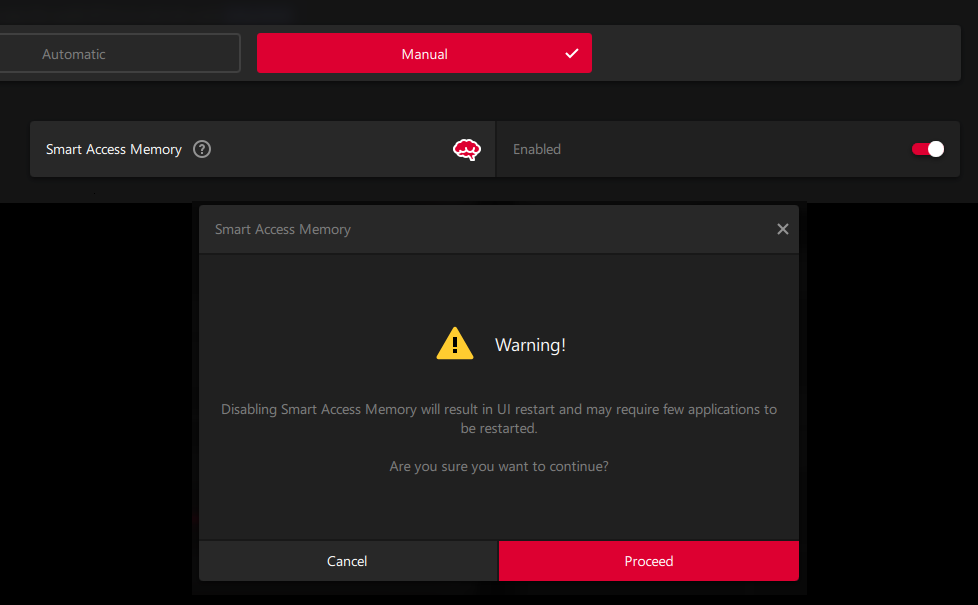
By this point, the game was better, but I was still short of the final result. Because the PC uses an AMD processor and Radeon graphics, I opened Performance > Tuning in Adrenalin and looked at Smart Access Memory instead of assuming the matching hardware had enabled it for me.
Smart Access Memory, or SAM, lets the processor reach a larger section of the graphics card’s memory at once. It is AMD’s use of Resizable BAR, and AMD describes it as something that may improve performance in certain situations, not a boost that works equally in every game. The status in Adrenalin was useful because it gave me a clear yes or no.
Getting that yes sent me into the BIOS. The exact menus depend on the motherboard, so I used its instructions and looked for Above 4G Decoding and Re-Size BAR Support rather than copying a BIOS screen from another brand. I enabled the supported options, saved the change, and checked Adrenalin again after Windows loaded. SAM now showed as active. That was enough BIOS for one afternoon.
I still had two ordinary Windows settings to check. Under Settings > System > Power & battery, I selected Best performance while the PC was plugged in. I would not leave that mode on while trying to stretch a laptop battery because it uses more power and can add heat, but saving power was not the goal during this test. Game Mode was switched on under Settings > Gaming, while background capture was turned off because I was not recording clips.
Task Manager supplied the less interesting part. I closed a browser, update helpers, and launchers I had finished using, but left security, audio, and Radeon services alone.
Microsoft’s performance advice recommends checking power mode and heavy background processes, although closing a few apps is not going to turn a slow graphics card into a fast one. It simply stopped unrelated work from joining the test.
With the original graphics preset restored, the final result was 18% more average FPS than I had at the start. The dedicated-GPU choice and Radeon Boost made the most visible difference; SAM, power mode, and the background cleanup helped the PC stop working against those changes. I did not overclock the GPU or buy anything.
What relieved me was not only the higher number. I no longer had to make the game look worse to keep it smooth, and I knew which settings had actually changed the result. Another AMD system may show different options or a smaller gain, but these checks cost nothing, and every one of them can be reversed.